A complete guide to the five reports you can generate in CashBook UPI, from a single transaction list to a consolidated company account statement built for your CA and year-end audits.
What you can do with reports in CashBook UPI
CashBook UPI gives your business a Virtual Account and a UPI wallet for each team member, so you can fund staff, approve their spends, and keep every rupee accounted for. The Reports section is where all of that activity turns into clean, shareable statements.
Instead of asking your accounts team to stitch together bank statements and screenshots, you can download exactly what you need in a few clicks: a member-wise spending summary, a UPI transaction report, a Virtual Account statement, or one consolidated company account statement that covers everything in a single file. This guide explains all five reports, when to use each, and how to download them.
Who these reports are for, and when to use them
Most CashBook UPI customers run team and field-staff spending through member wallets. These are the moments the reports are built for:
Month-end reconciliation: match UPI payments, refunds, and collections against your books.
Reviewing team spending: see how much each member spent, and what was approved or rejected.
Year-end audit and GST filing: hand your CA a single, complete statement with all your bills attached.
Tracking a single wallet or the Virtual Account: zoom into one member's wallet or your business Virtual Account when you need to investigate.
Here is the fastest way to pick the right one:
If you want to... | Use this report |
|---|---|
Hand a complete statement to your CA for a GST filing or year-end audit | Consolidated company account statement (Virtual Account + all wallets in one file) |
Check how much each field or sales team member spent this month | Approvals report (per-member spent, approved, rejected, pending) |
Reconcile UPI payments and refunds at month-end | Transactions report |
See top-ups and transfers in your business Virtual Account | Virtual Account report |
Review one employee's wallet history | Individual Wallet report |
The five CashBook UPI reports at a glance
You can download five types of reports in CashBook UPI. Here is a quick view of what each one is for. The sections below explain each in detail.
Report | Best for | Formats |
|---|---|---|
Transactions | All UPI payments, refunds, and collections made by your team. | Excel or PDF |
Approvals | A per-member summary of spent, approved, rejected, and pending amounts. | Excel or PDF |
Virtual Account | Money moving in and out of your business Virtual Account. | Excel or PDF |
Individual Wallet | The full transaction history for any one team member's UPI wallet. | Excel or PDF |
Consolidated company account statement | Your full money trail across the Virtual Account and every UPI wallet in one file. Built for your CA or finance team. | Excel only |
Transactions report
The Transactions report lists all UPI payments, refunds, and collections made by your team. It is the report to reach for when you need a straightforward record of what was paid, when, and by whom, for month-end reconciliation or sharing with your accounts team.
Available in Excel or PDF.Approvals report
The Approvals report gives you a per-member summary of spending against approvals, which is ideal for reviewing field-staff and team expenses. For each member, it shows:
- Total amount spent
- Approved amount
- Rejected amount
- Pending, flagged, and resubmitted amount
Use it when you want to see Spent, Approved, and Rejected amounts for all members in one view.
Available in Excel or PDF.Virtual Account report
The Virtual Account report shows every money movement in and out of your business Virtual Account: top-ups from your bank, money sent out to member wallets, and money pulled back from member wallets into the Virtual Account.
If you want a single report covering your Virtual Account and all member wallets together, use the Consolidated company account statement instead.
Available in Excel or PDF.Individual Wallet report
The Individual Wallet report gives you the full transaction history for any one team member's UPI wallet. When you generate it, you pick the member whose wallet you want.
If you want all members' wallets in one report, use the Consolidated company account statement instead.
Available in Excel or PDF.Consolidated company account statement
The Consolidated company account statement is a single report covering every money movement across your Virtual Account and all member wallets in one place. If you have ever wanted one clean file that tells the whole story of your company's money on CashBook UPI, this is it.
What it includes:
UPI payments made by your team
Refunds and collections
Money added to your Virtual Account from your bank account
Money moved from the Virtual Account to member wallets
Money pulled back from member wallets to the Virtual Account
This report is built for sharing with your CA or finance team during audits. It is available in Excel only.
How to download a report in CashBook UPI on Web.
All reports are generated from the same place: the All Reports page. Here is the standard flow.
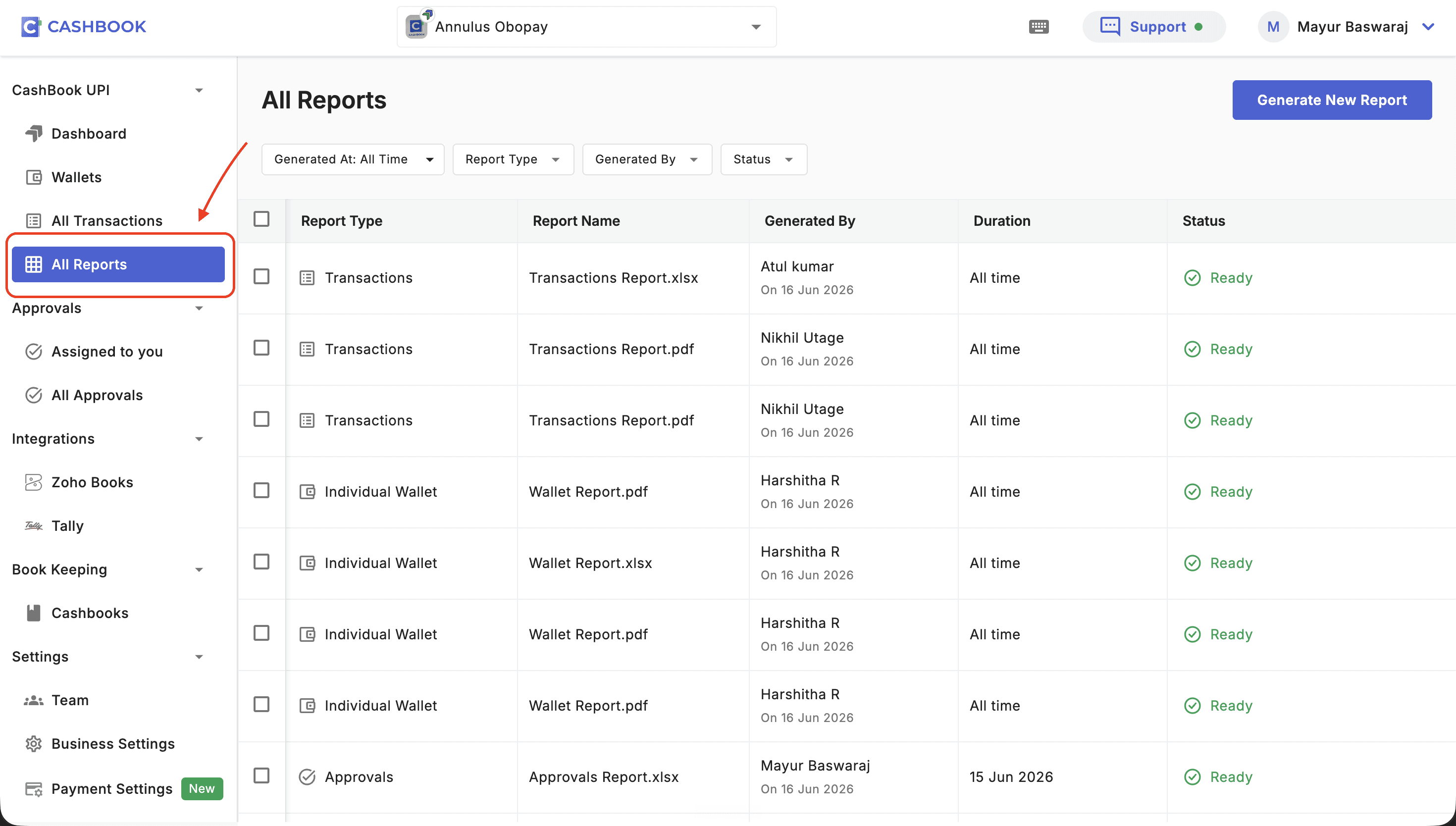
1. Go to All Reports from the left navigation, under Cashbook UPI.
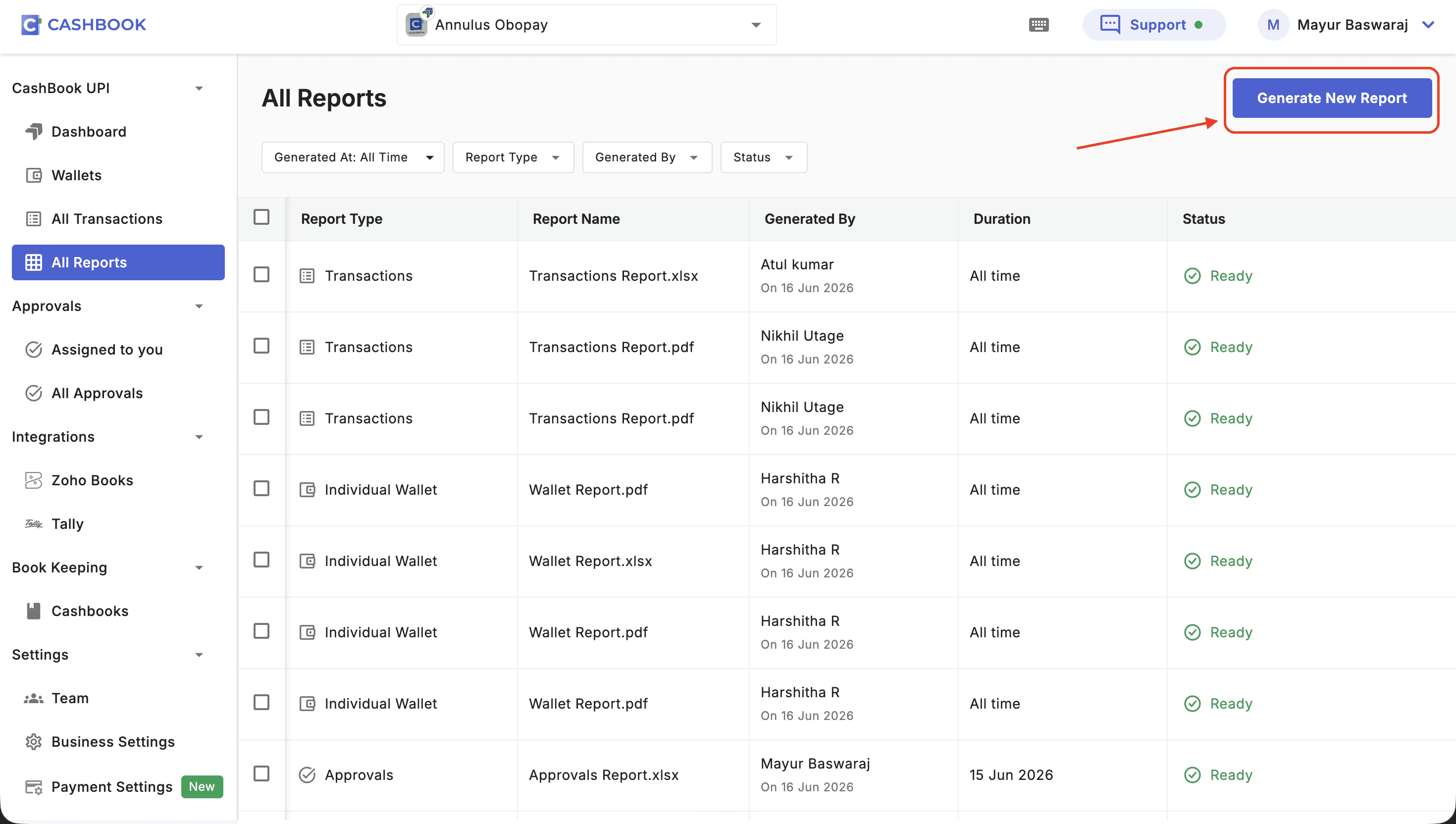
2. Click Generate New Report on the top right.
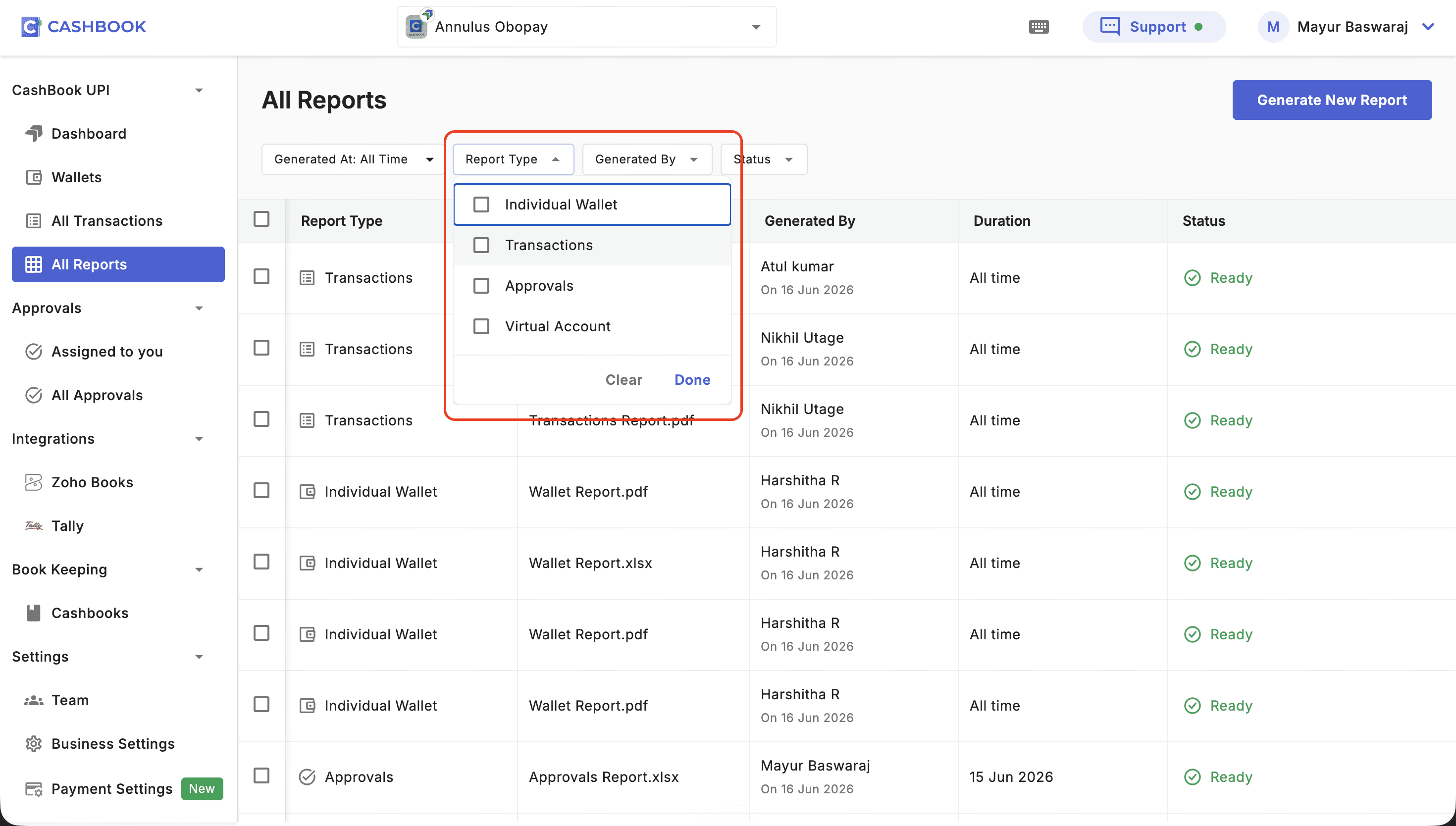
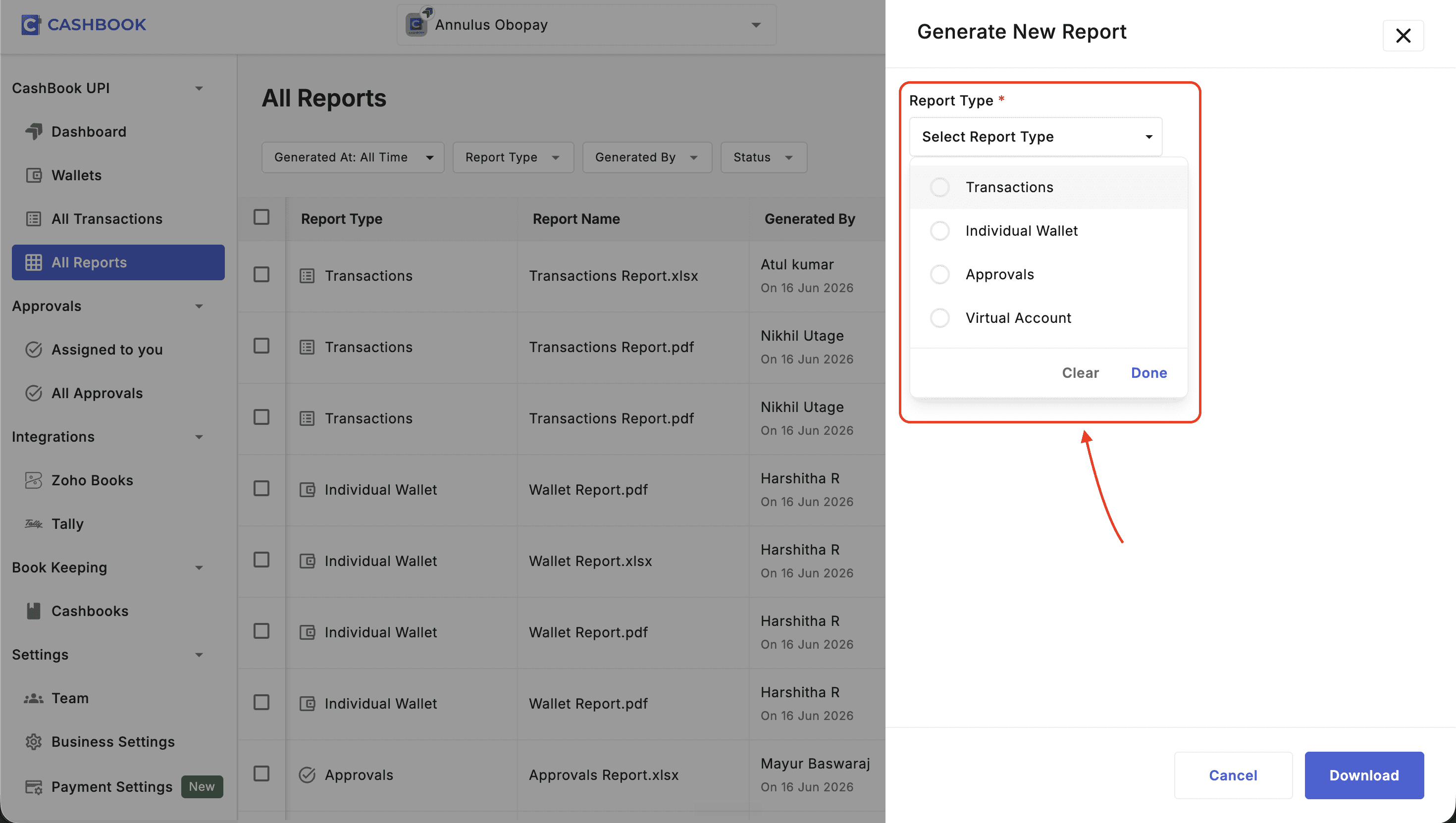
3. Pick a Report Type from the dropdown.
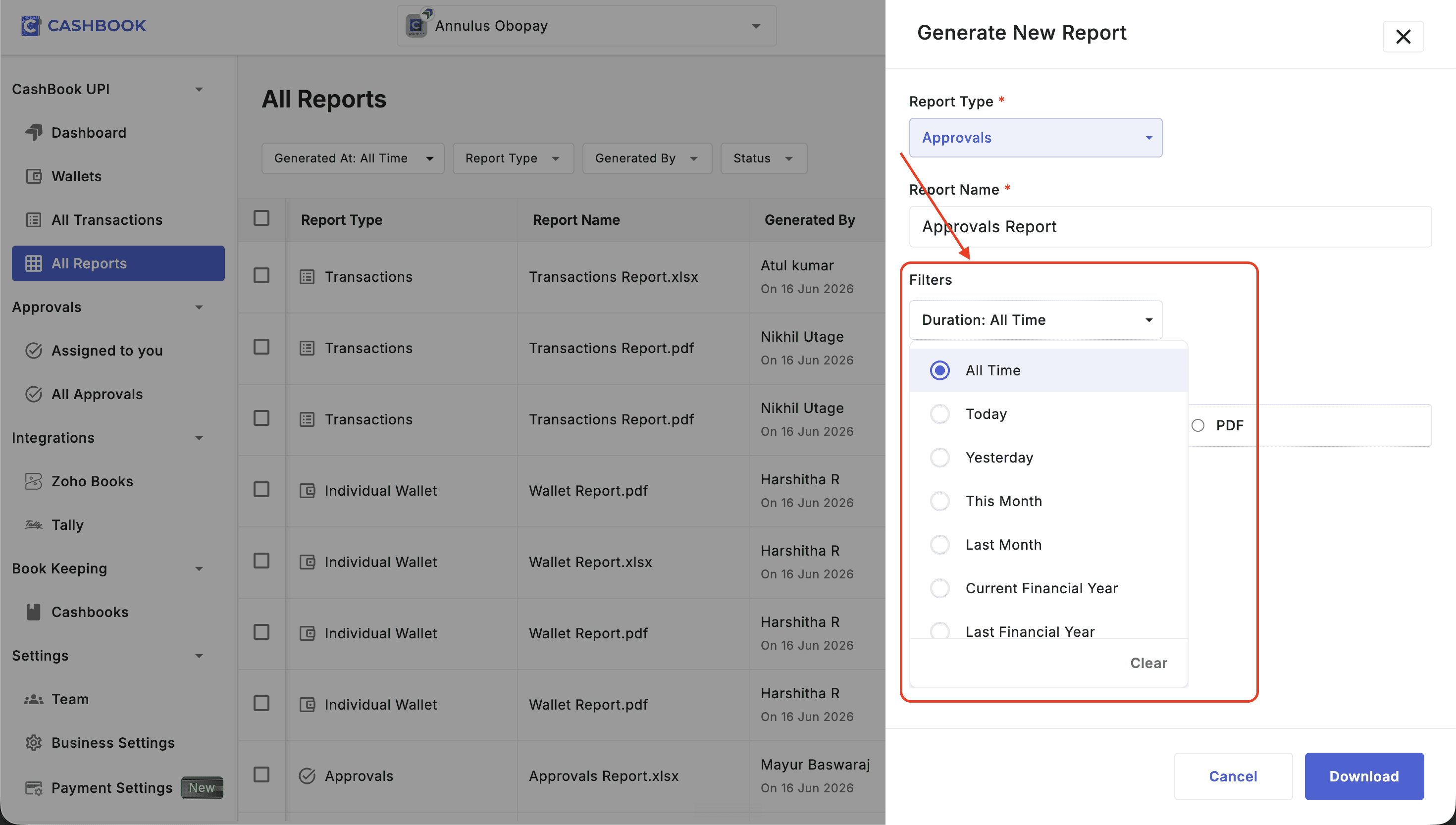
4. Choose a date range, and any other filters the report offers (for example, the member for an Individual Wallet report).
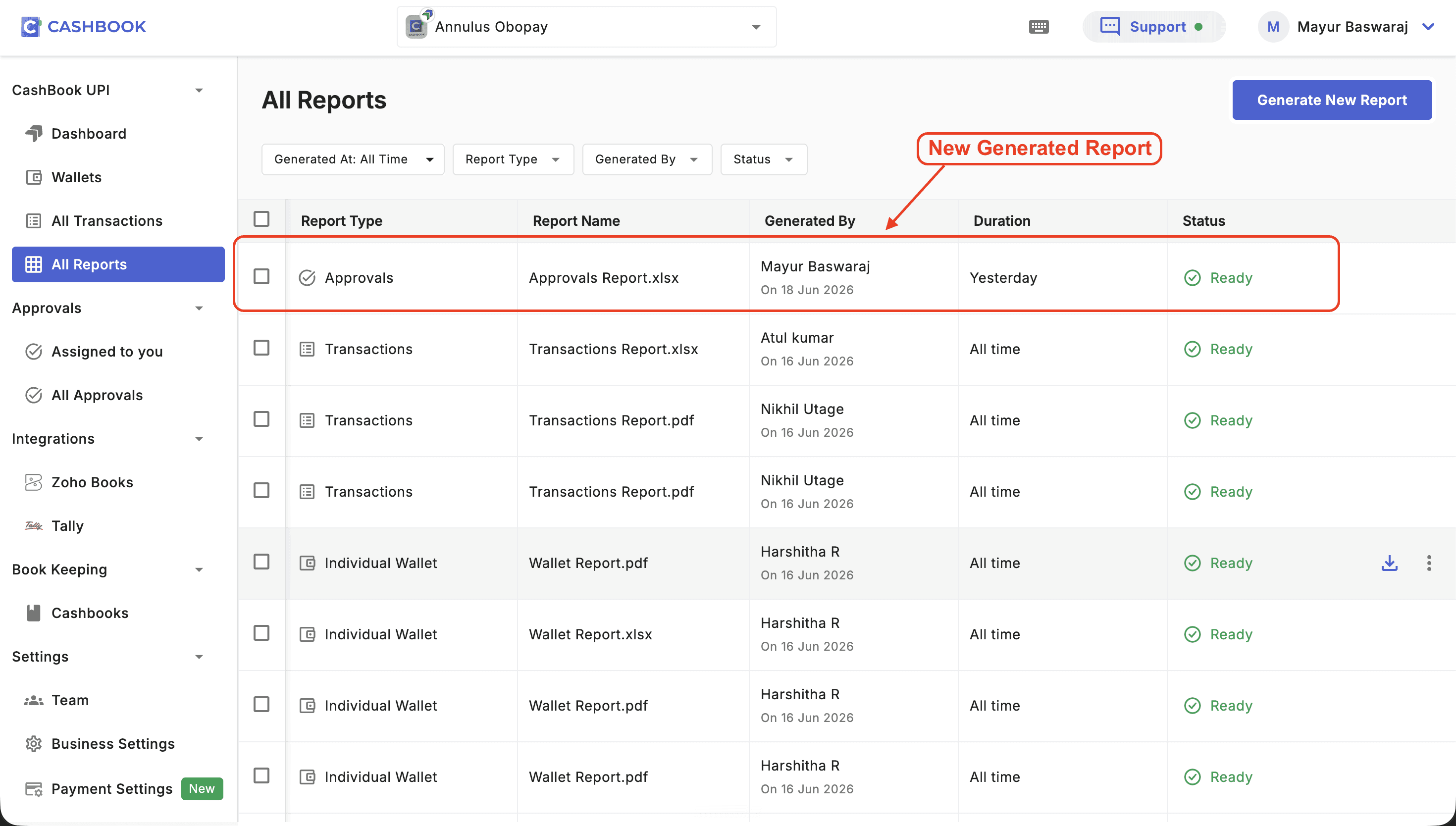
5. Click Download. Your report appears in the All Reports table once it is ready, and you can download it from there.
Other places you can download reports from
The All Reports page is the main hub, but a few reports can also be downloaded right where you are already working:
All Transactions page: apply your filters (date, member, status, and so on) and download a transaction report directly from that view.
Virtual Account page: download a Virtual Account statement filtered by date. To open it, click the Virtual Account card on your Dashboard.
Member wallet detail page: open any member's wallet and download that wallet's transaction report from there.
All Approvals section: download the Approvals report from here too, under Approvals in the left navigation.
No matter where you start, every report you generate also appears on the All Reports page, so you can always find it and download it again later.
How to get bills along with your UPI transaction report
When you generate a Transactions report or a Consolidated company account statement, you can choose to include your transaction bills. This is what your CA will usually ask for at audit time. You get two options on the file format step:
Excel with bill links: the Excel report includes a link to each transaction's bill. These links expire in 7 days, so this option is best for quick access.
Excel and bill files as ZIP: the Excel report plus all the bill files, bundled into a ZIP and saved straight to your device. These never expire, which makes them best for sharing with your CA or for year-end audits.
To choose your option:
Click Generate New Report on the All Reports page.
Select Transactions or Consolidated company account statement.
Pick your date range.
On the file format step, choose Excel with bill links or Excel and bill files as ZIP.
Click Download.
You can also download a transaction report with bills directly from the All Transactions page after applying your filters.
Where to find the reports you have already generated (Web)
Go to All Reports from the left navigation, under Cashbook UPI. The page shows every report generated by you and your team, with these details for each one:
- Report Type
- Report Name
- Generated By
- Duration (the date range it covers)
- Download Status: Ready, Generating, Failed, or Expired
You can filter the list by Generated At, Type, Generated By, or Status. Click any row marked Ready to download it again.
Frequently asked questions
Q1. What reports can I download in CashBook UPI?
You can download five reports: the Consolidated company account statement, Transactions, Approvals, Virtual Account, and Individual Wallet. All five are generated from the All Reports page in Web.
Q2. How do I get all Virtual Account and wallet transactions in one report?
Use the Consolidated company account statement. It is the only report that covers your Virtual Account and all member wallets in a single file.
Q3. Which report should I share with my CA for an audit?
The Consolidated company account statement, generated with bills included as a ZIP. It gives your CA the complete money trail, plus every bill file in one download that does not expire.
Q4. How do I see how much each team member spent?
Use the Approvals report. It shows each member's total spent, approved, rejected, and pending amounts in one view. You can download it from the All Reports page or the All Approvals section.
Q5.Can I download CashBook UPI reports as PDF?
Yes. Transactions, Approvals, Virtual Account, and Individual Wallet reports are available in Excel or PDF. The Consolidated company account statement is available in Excel only.
Q6.Where do my generated reports go?
Every report you generate appears on the All Reports page, no matter where you started it. You can filter, find, and re-download it there any time.