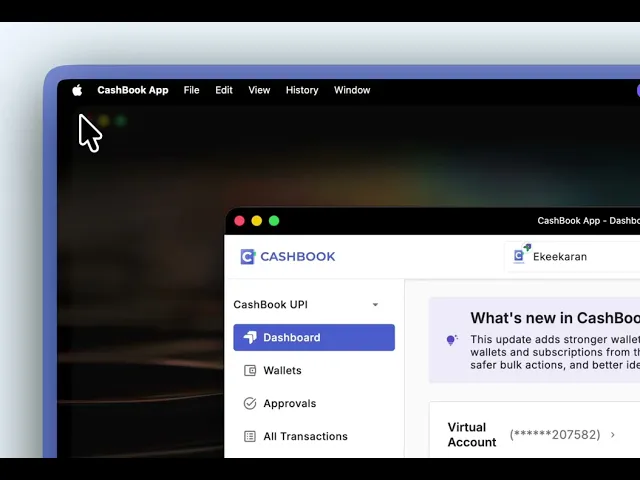
Managing business expenses becomes seamless when you have CashBook readily accessible on your desktop. This guide walks you through three simple methods to install the CashBook app on your PC or laptop, whether you're an existing user or just getting started.
Why Install CashBook App on Your Desktop?
Installing CashBook as a desktop app provides several advantages over browser-based access:
Instant access – Launch directly from your Windows Start menu or taskbar without opening a browser
Native app experience – Works like a traditional desktop application with its own window and app icon
Better performance – Faster loading times and smoother navigation compared to browser tabs
Method 1: Install from Browser (For Existing Users)
A) If you're already using CashBook on Chrome, installation takes just two clicks:
Open CashBook – Navigate to web.cashbook.in in your Chrome browser
Click on "Browse Extensions Menu" -
Chrome: On the right side of the address bar, you will find a "star" symbol and on the left side of this symbol you will find the download icon, you need to click on this icon.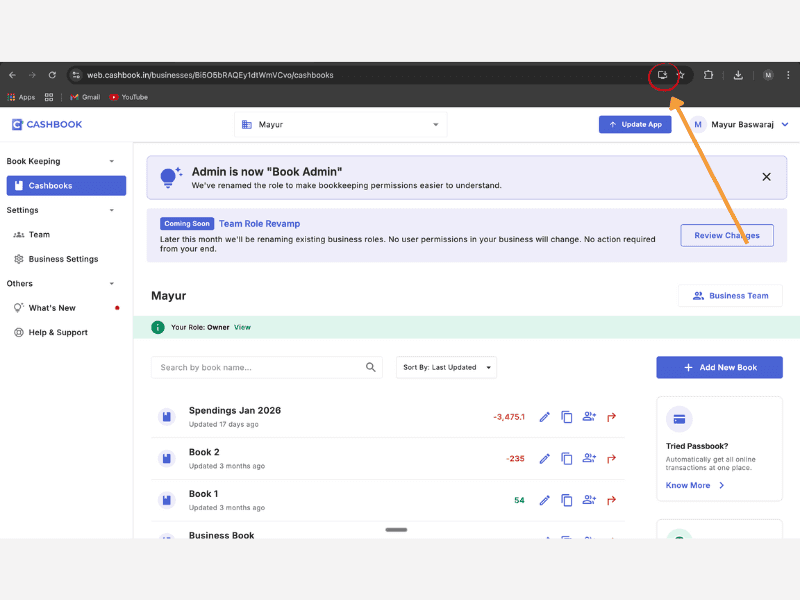
Find the install option – Click on "Install" and the CashBook App is downloaded on your PC.
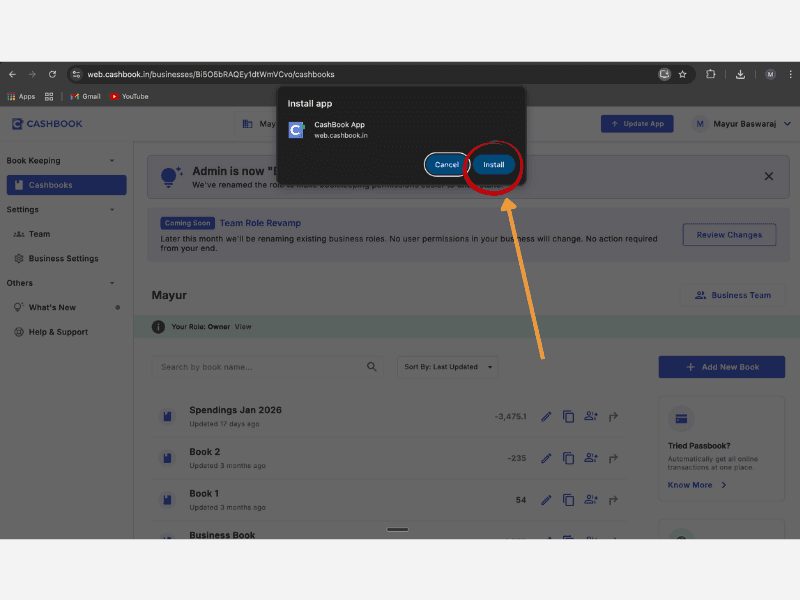
Access app: The CashBook app icon will appear on your desktop and Start menu, ready to launch anytime.
B) If you're already using CashBook on Edge, installation takes just two clicks:
Open CashBook in Edge – Navigate to web.cashbook.in in Microsoft Edge browser
Locate Extensions menu – On the right side of the address bar, find the star icon (bookmark). Immediately to its left, click the puzzle piece icon (Extensions menu)
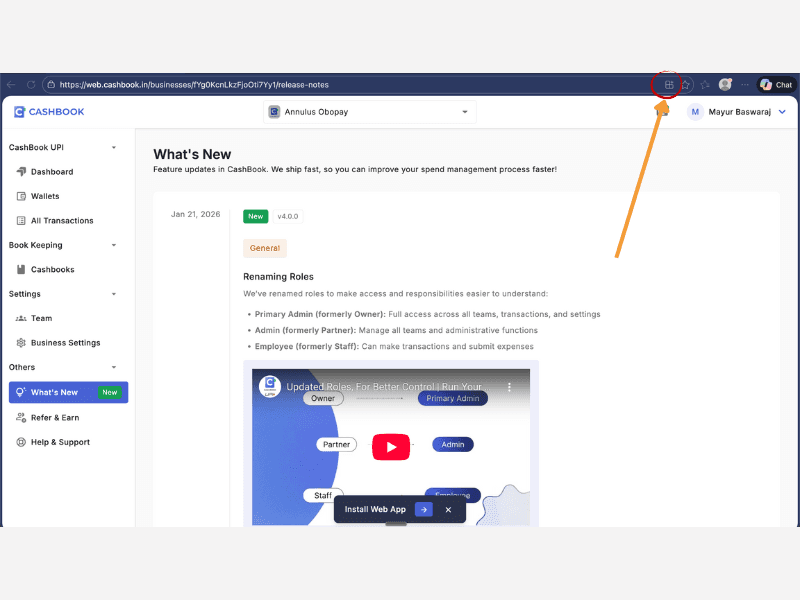
Open Extensions dropdown – Click the puzzle icon to reveal the extensions menu
Select Install option – In the dropdown box that appears, click "Install" or "Install CashBook as app"
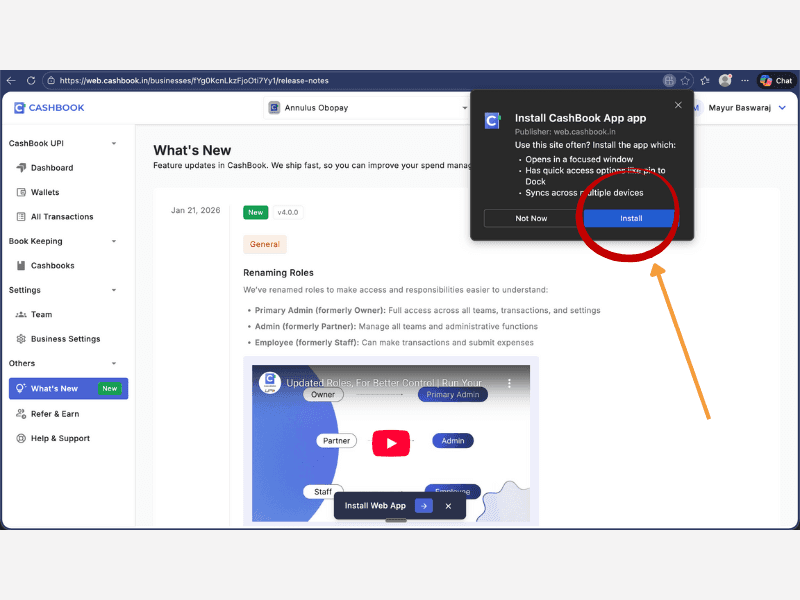
Complete installation – The app downloads automatically to your PC
Method 2: Download from Microsoft Store (For New Users)
The Microsoft Store provides the most straightforward installation method for Windows users:
Open Microsoft Store – Click the Start button and search for "Microsoft Store"
Search for CashBook – Type "CashBook App" in the search bar at the top
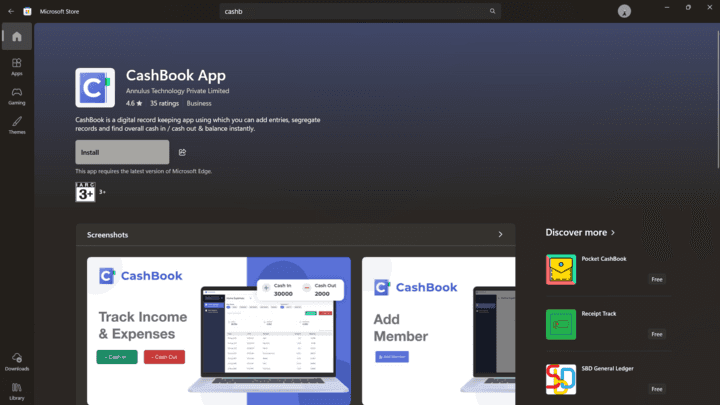
Click "Install" – Select the CashBook app from search results and click the "Install" button
Wait for download – The app will download and install automatically on your PC
Login and start – Once installed, open CashBook and log in with your registered mobile number
This method is ideal if you're setting up CashBook for the first time and prefer the official app store experience.
Method 3: Direct Installation from CashBook Website
For users who want to access CashBook directly without searching through app stores:
Visit the CashBook website – Open Chrome or Edge and go to web.cashbook.in
Look for install prompts – You'll see an "Install App" button on the screen or in the address bar
Choose your preferred method – Click either the on-screen button or the install icon in the browser's extension menu
Chrome: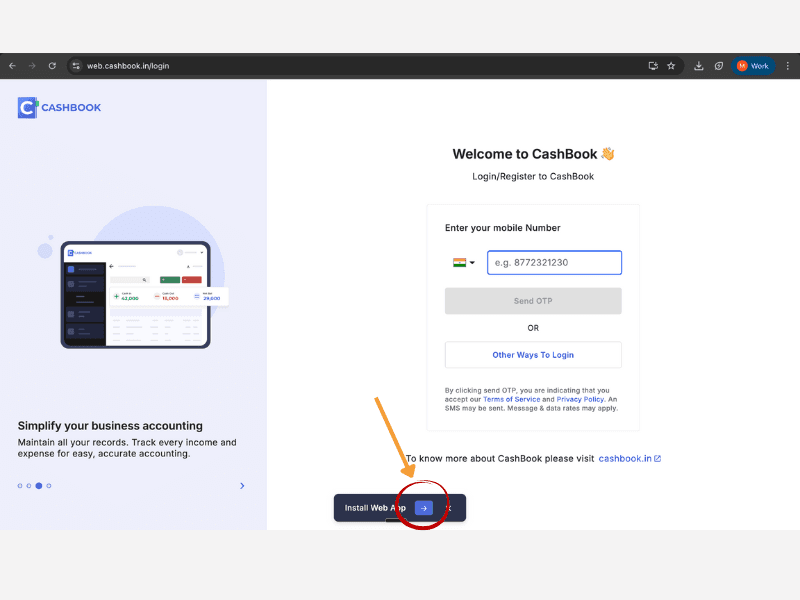
Edge: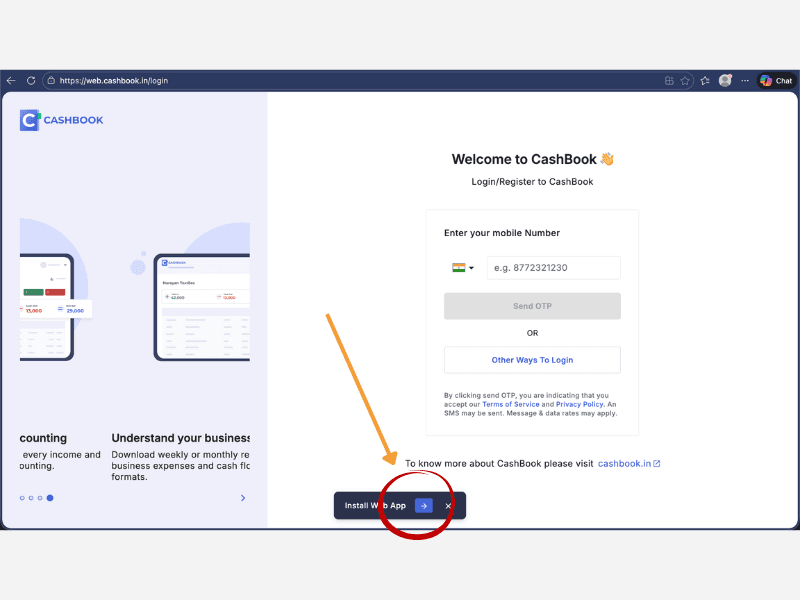
Complete installation – Click "Install" in the confirmation dialog that appears
Access your account – Log in with your CashBook registered number and start managing expenses
This method works identically for both Chrome and Edge browsers, making it convenient regardless of your browser preference.
After installation: Access CashBook from your desktop or Start menu, log in with your registered mobile number, and start managing expenses immediately.
Frequently Asked Questions
Can I use CashBook on both browser and desktop app?
Yes, you can access CashBook from both your browser and the installed desktop app. Your data syncs automatically across all platforms.
Does the desktop app work offline?
No, the CashBook desktop app has very limited offline functionality specifically designed for basic bookkeeping only.
Will I receive automatic updates?
Yes, the CashBook Web App updates automatically whenever we release new features or improvements. No manual update required.
Is the Microsoft Store version different from the browser installation?
Both versions provide the same functionality and features. Choose the installation method that's most convenient for you.
Can I install CashBook on Mac ?
Currently, the desktop app installation is optimized for Windows PCs. Mac users can access CashBook through their web browsers at web.cashbook.in.
Start Using CashBook Desktop App Today
Download the CashBook app using any of the three methods above and transform how your business manages employee expenses. With NPCI certification and RBI licensing, CashBook provides the security and compliance your business needs while delivering the convenience of instant UPI payments.
Ready to streamline your expense management? Book a demo to start using UPI wallets for your business expenses.